Getting started with Blockly
6. Create a custom block
Since this is a music maker app, we want a block that plays sounds. We could create one block per sound, but instead we will create a single block with a dropdown to select which note to play:
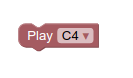
In Blockly, a block definition describes how a block looks and behaves. This includes its text, colour, and shape. It may also include which other blocks it can connect to.
Blocks can be defined in either JavaScript or JSON. The developer site has a full article on how to define a block.
In this codelab we will simply provide the block definition for you to copy and use.
Define the sound block
Create a JS file to define a new "play sound" block:
- Add
sound_blocks.jsfile in thescriptsdirectory. - Add the following code to
sound_blocks.js:
Blockly.common.defineBlocksWithJsonArray([
  {
    type: 'play_sound',
    message0: 'Play %1',
    args0: [
      {
        type: 'field_dropdown',
        name: 'VALUE',
        options: [
          ['C4', 'sounds/c4.m4a'],
          ['D4', 'sounds/d4.m4a'],
          ['E4', 'sounds/e4.m4a'],
          ['F4', 'sounds/f4.m4a'],
          ['G4', 'sounds/g4.m4a'],
        ],
      },
    ],
    previousStatement: null,
    nextStatement: null,
    colour: 355,
  },
]);
Add a script tag to index.html to include your new block definition:
<script src="scripts/sound_blocks.js"></script>
Your sound block definitions must come after importing Blockly and before the other imports, since you will use Blockly functions in this file, and you will be using functions from this file in later files. Your imports should now look like this:
<script src="https://unpkg.com/blockly"></script>
<script src="scripts/sound_blocks.js"></script>
<script src="scripts/music_maker.js"></script>
<script src="scripts/main.js"></script>
Add the sound block to the toolbox
Now we can update the toolbox to include the new sound block, by adding {'kind': 'block', 'type': 'play_sound'} to our toolbox definition:
const toolbox = {
  kind: 'flyoutToolbox',
  contents: [
    {
      kind: 'block',
      type: 'controls_repeat_ext',
      inputs: {
        TIMES: {
          shadow: {
            type: 'math_number',
            fields: {
              NUM: 5,
            },
          },
        },
      },
    },
    {
      kind: 'block',
      type: 'play_sound',
    },
  ],
};
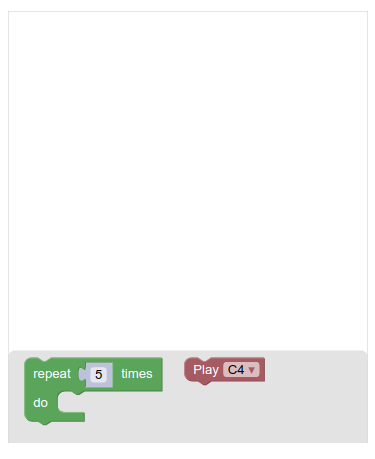
Run the app one more time, and play around with the new Play (sound) block. It should look like this:
The block factory
This step discussed how to manually define custom blocks in Blockly. Once you've completed the entire codelab, we recommend that you check out our block factory tool, which helps automate part of this process.