Customizing a Blockly toolbox
2. Setup
Download the sample code
You can get the sample code for this codelab by either downloading the zip here:
or by cloning this git repo:
git clone https://github.com/RaspberryPiFoundation/blockly.git
If you downloaded the source as a zip, unpacking it should give you a root folder named blockly-main.
The relevant files are in docs/docs/codelabs/custom-toolbox. There are two versions of the app:
starter-code/: The starter code that you'll build upon in this codelab.complete-code/: The code after completing the codelab, in case you get lost or want to compare to your version.
Each folder contains:
index.js- The codelab's logic. To start, it just injects a simple workspace.index.html- A web page containing a simple blockly workspace.
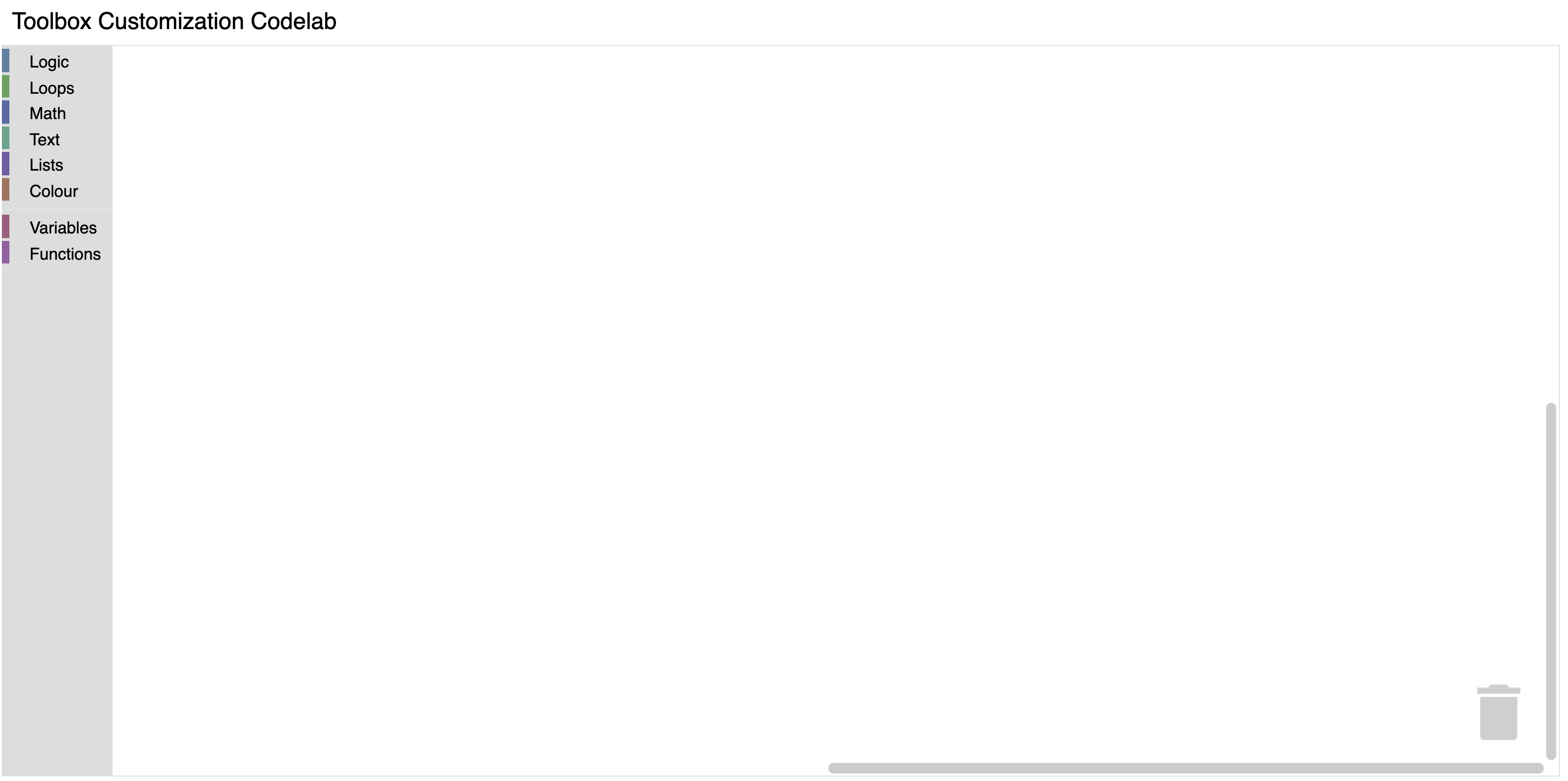
To run the code, simply open starter-code/index.html in a browser. You should see a Blockly workspace with a toolbox.
Define and register a custom category
To start, create a file named custom_category.js in the starter-code
directory. Include your new file by adding a script tag to index.html.
<script src="custom_category.js"></script>
In order to create a custom category we will create a new category that extends
the default Blockly.ToolboxCategory class. Add the following code to your
custom_category.js file.
class CustomCategory extends Blockly.ToolboxCategory {
  /**
   * Constructor for a custom category.
   * @override
   */
  constructor(categoryDef, toolbox, opt_parent) {
    super(categoryDef, toolbox, opt_parent);
  }
}
After defining your category you need to tell Blockly that it exists.
Register your category by adding the below code to the end of custom_category.js.
Blockly.registry.register(
  Blockly.registry.Type.TOOLBOX_ITEM,
  Blockly.ToolboxCategory.registrationName,
  CustomCategory,
  true,
);
By registering our CustomCategory with Blockly.ToolboxCategory.registrationName
we are overriding the default category in Blockly. Because we are overriding a
toolbox item instead of adding a new one, we must pass in true as the last
argument. If this flag is false, Blockly.registry.register will throw
an error because we are overriding an existing class.
The result
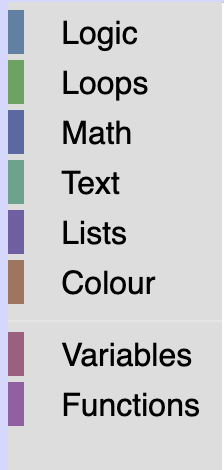
To test, open index.html in a browser. Your toolbox should look the same as it
did before.
However, if you run the below commands in your console you will see that
your toolbox is now using the CustomCategory class.
var toolbox = Blockly.common.getMainWorkspace().getToolbox();
toolbox.getToolboxItems()[0];