Customizing a Blockly toolbox
7. Adding a custom toolbox item
In the previous sections we modified the toolbox by extending the base category class. In this section we will make a completely new toolbox item and add it to our toolbox.
For this example, we are going to create a toolbox label.
Setup
In the same directory as index.html create a new file named toolbox_label.js.
Include this file in index.html:
<script src="toolbox_label.js"></script>
Create a class in toolbox_label.js that extends Blockly.ToolboxItem
and register it.
class ToolboxLabel extends Blockly.ToolboxItem {
  constructor(toolboxItemDef, parentToolbox) {
    super(toolboxItemDef, parentToolbox);
  }
}

Blockly.registry.register(
  Blockly.registry.Type.TOOLBOX_ITEM,
  'toolboxlabel',
  ToolboxLabel,
);
By registering this toolbox item with the name "toolboxlabel" we can now use this name in our toolbox definition to add our custom item to the toolbox.
Navigate to index.html, and scroll down to the toolbox definition. Add a
<toolboxlabel> element as the first item in your toolbox definition:
<toolboxlabel></toolboxlabel>
Your toolbox definition should now look something like:
<xml xmlns="https://developers.google.com/blockly/xml" id="toolbox-categories" style="display: none">
<toolboxlabel></toolboxlabel>
<category css-icon="customIcon fa fa-cog" name="Logic" categorystyle="logic_category">
...
</xml>
Initialize the toolbox item
In order to create a toolbox item we must implement one of the toolbox item interfaces.
For this example, we will be implementing the basic IToolboxItem interface.
There are three different types of toolbox item interfaces:
IToolboxItem, ISelectableToobloxItem and ICollapsibleToolboxItem.
Since we do not need our label to be selectable or collapsible, we can implement
the basic IToolboxItem interface.
First, we are going to add an init method that will create the dom for our toolbox label:
  /** @override */
  init() {
    // Create the label.
    this.label = document.createElement('label');
    // Set the name.
    this.label.textContent = 'Label';
  }
Next, we are going to return this element:
  /** @override */
  getDiv() {
    return this.label;
  }
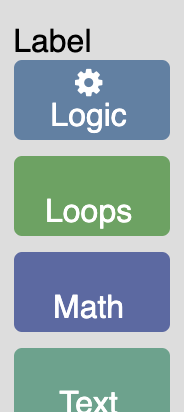
If you open the index.html file you should see a label above your first category.
Add attributes to the toolbox definition
The above code is rather limiting since it only allows us to create a toolbox
label with the text "Label".
To make it possible to create different labels with different text and colour we
are going to add name and colour attributes to our toolbox definition.
Open index.html and navigate to the toolbox definition. Change your
toolboxlabel element to look like the below line:
<toolboxlabel name="Custom Toolbox" colour="darkslategrey"></toolboxlabel>
These values will get passed in to our ToolboxLabel class through the toolboxItemDef.
Navigate to toolbox_label.js and add the following lines to your init method:
// Set the name.
this.label.textContent = this.toolboxItemDef_['name'];
// Set the color.
this.label.style.color = this.toolboxItemDef_['colour'];
Remove the following line from your init method:
this.label.textContent = 'Label';
All attributes on our toolbox definition get added to the toolboxItemDef_.
this.toolboxItemDef_ is set in the Blockly.ToolboxItem constructor.
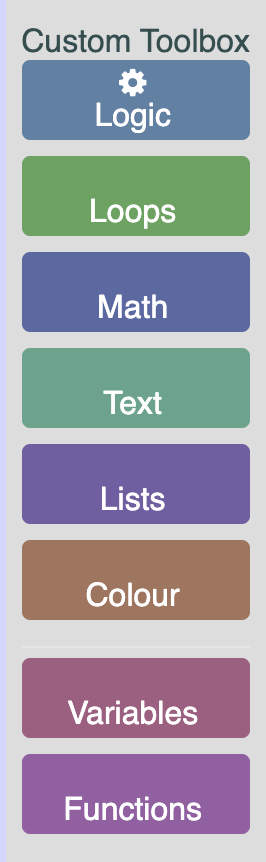
Open your index.html in a browser to see the updated label.
Add some CSS
Similar to how we added colour and name above, we are going to add a custom
class to our label.
Navigate to your toolbox definition in index.html and modify it to look
like the below line.
<toolboxlabel name="Label" colour="darkslategrey" css-label="customLabel"></toolboxlabel>
Any item that begins with css- will be added to a cssconfig object stored on
the toolboxItemDef.
To use this value navigate to toolbox_label.js and add the following lines to
your init method.
// Any attributes that begin with css- will get added to a cssconfig object.
const cssConfig = this.toolboxItemDef_['cssconfig'];
// Add the class.
if (cssConfig) {
  this.label.classList.add(cssConfig['label']);
}
The above code will add the class to the label. Now, in toolbox_style.css add
the below CSS to make the label bold.
.customLabel {
  font-weight: bold;
}
The result
If you open index.html you should now see a bold dark gray label at the
top of your toolbox.