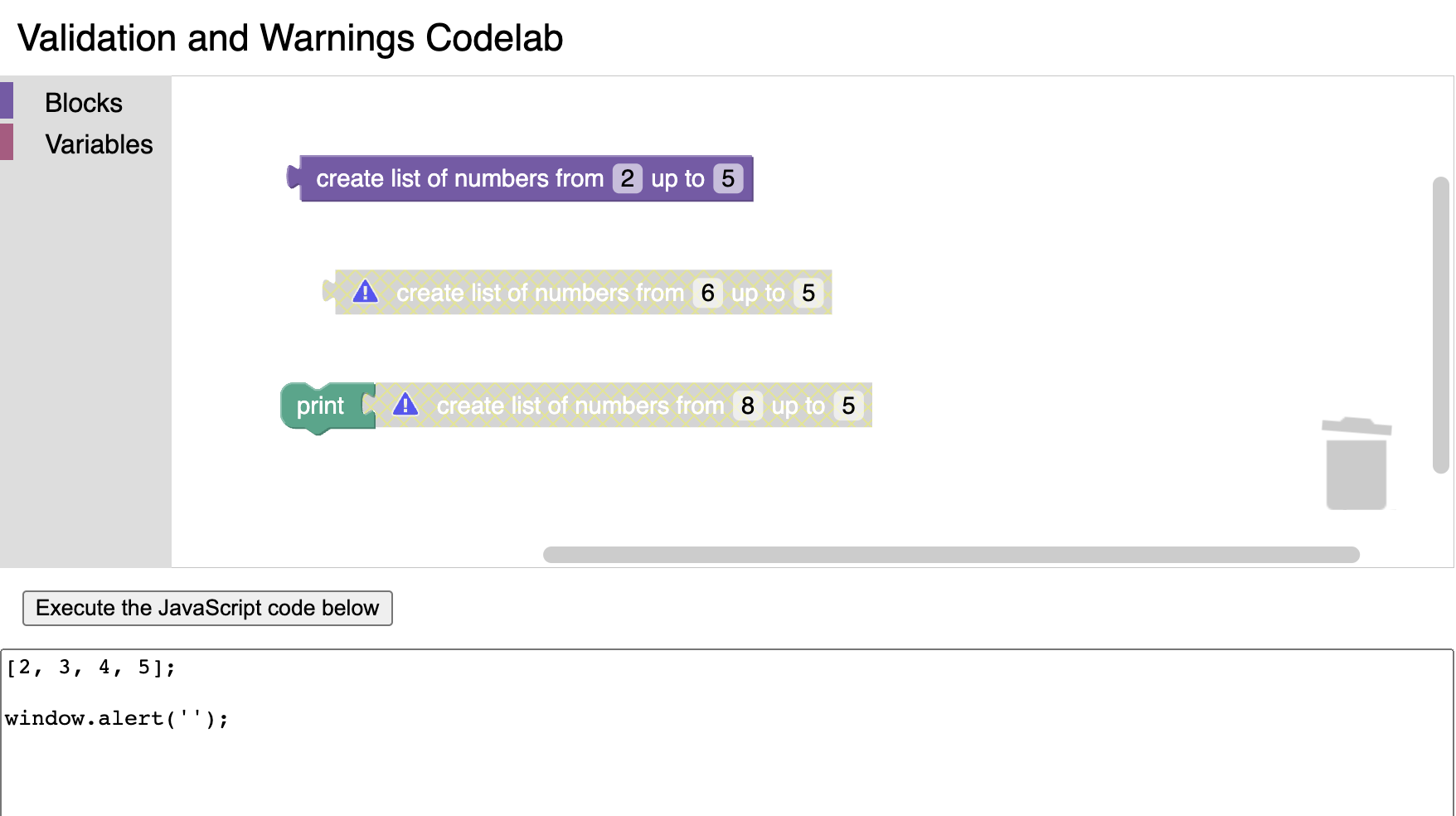
Block validation and warnings
4. Displaying warnings
Both Blockly's built-in validators and custom validators are nice because they immediately correct any errors so that there should never be any interruption in the validity of the blocks in the workspace or in the validity of the code that it generates. This results in a smooth, pleasant experience for the user, and you should take advantage of these validators whenever possible.
However, there may be invalid conditions that can't be corrected automatically because it's ambiguous what the desired result is. For example, it doesn't make much sense for our custom block to have a FIRST field with a greater value than the LAST field, but it's not obvious which of the two fields is "wrong." The best we can do is warn the user about the problem, and let them decide how to fix it.
In the case of our custom block, we want our extension to be notified whenever either field is updated, so that it can check both of the fields to determine whether the block is currently valid. We can set that up with a general change listener by adding this code inside the extension function after the custom validator:
// Validate the entire block whenever any part of it changes,
// and display a warning if the block cannot be made valid.
this.setOnChange(function (event) {
  const first = this.getFieldValue('FIRST');
  const last = this.getFieldValue('LAST');
  const valid = first < last;
  this.setWarningText(
    valid
      ? null
      : `The first number (${first}) must be smaller than the last number (${last}).`,
  );
});
This change listener function will get called whenever any part of the block is updated. It has access to all of the block's current field values, as well as the block's parents and children, if any. In this case, it reads both field values and compares them to determine whether the block is valid. Then it calls this.setWarningText(...), which can accept either null indicating that there is nothing wrong or a string describing the problem.
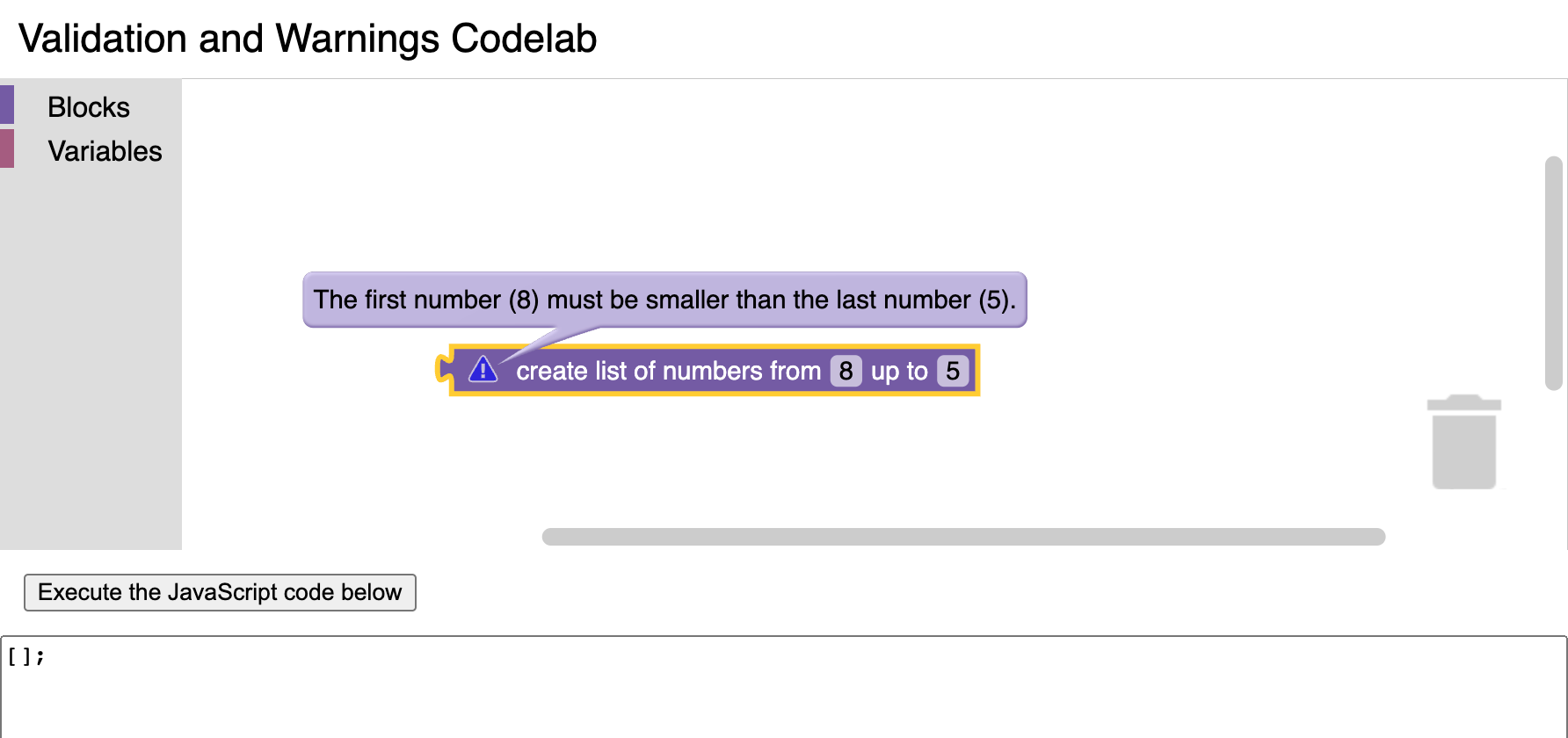
Reload index.html, drag the custom block into the workspace, then edit the fields to make the FIRST field greater than the LAST field. You should see a warning indicator, and you can click on it to see the warning message:
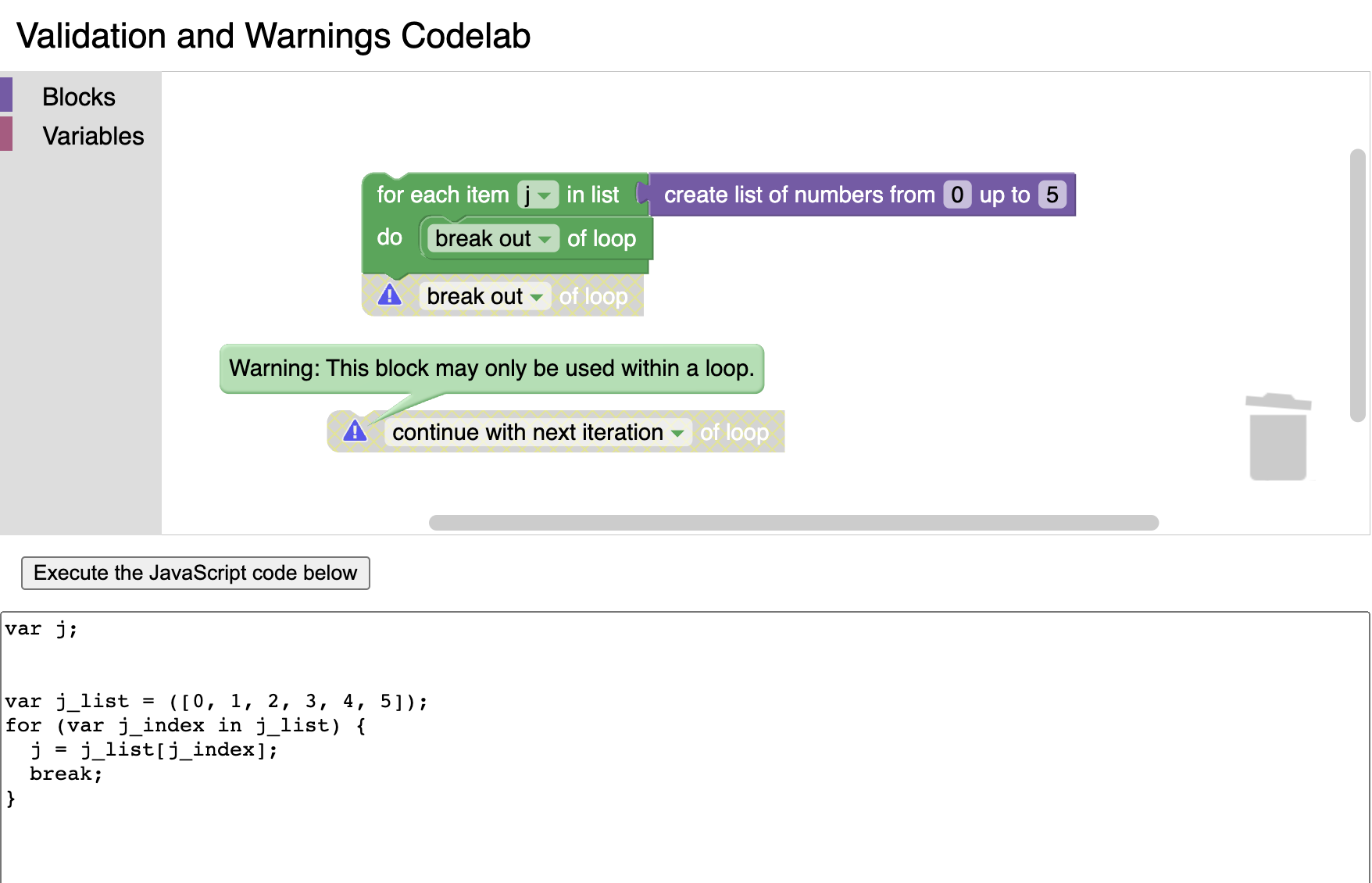
Depending on the severity of the issue, this might be sufficient for your custom block's needs. However, if the validity issue is severe enough that it wouldn't make sense to even try to generate code from the block, you should disable the block in addition to displaying a warning, because disabling a block makes code generators pretend the block doesn't exist. For example, most languages only allow break or continue statements inside of loops, so Blockly's corresponding built-in blocks are automatically disabled when used outside of loops:
You can disable a block using this.setDisabledReason(true, 'reason'), although there are some caveats: disabled blocks can't be dragged out of the toolbox flyout, and the act of disabling a block usually adds an event to Blockly's undo history. That's probably not the behavior you want when validating a block, so you can avoid both of these effects with the following code, which you should put inside the change listener function after setting the warning text:
// Disable invalid blocks (unless it's in a toolbox flyout,
// since you can't drag disabled blocks to your workspace).
if (!this.isInFlyout) {
  const initialGroup = Blockly.Events.getGroup();
  // Make it so the move and the disable event get undone together.
  Blockly.Events.setGroup(event.group);
  this.setDisabledReason(!valid, 'Invalid range');
  Blockly.Events.setGroup(initialGroup);
}
Reload index.html one last time, drag out the custom block, and edit the fields to make the FIRST field greater than the LAST field again. This time, the block should be disabled, and it won't generate code even if it is combined with other blocks: