Visual glossary
Blockly has a lot of vocabulary for its different visual components. This document breaks down some of the most important ones you need to know to get started with Blockly.
Workspace
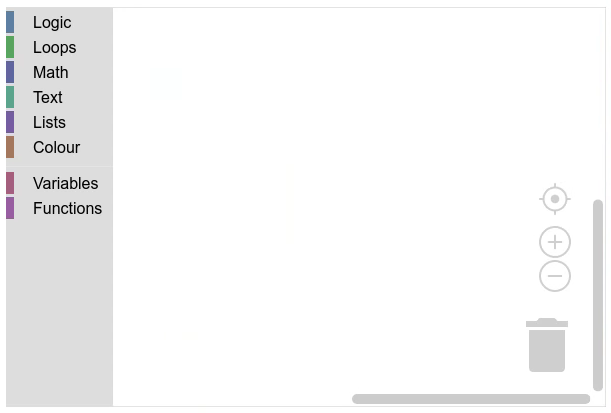
The workspace is the highest level component in Blockly. It contains all of the other components. This is where you do the work of programming!
Toolbox
The toolbox contains the blocks that you use to program. The blocks can be dragged onto the workspace.
There are two main types of toolboxes, flyout toolboxes and category toolboxes. These can both be displayed vertically and horizontally.
Flyout toolbox
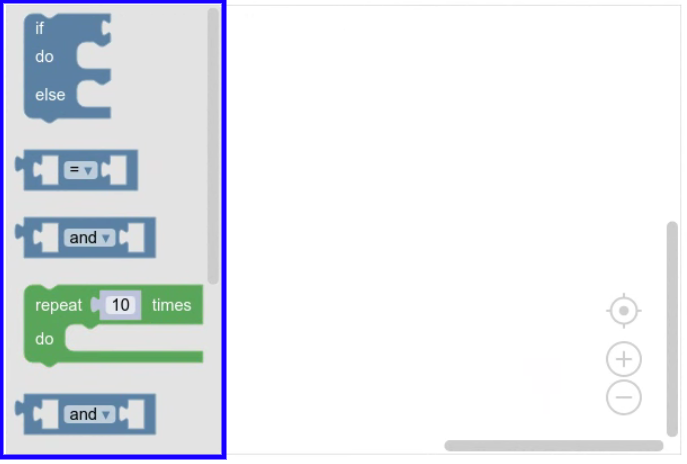
Flyout toolboxes (aka simple toolboxes) have one set of blocks which is displayed at all times.
Category toolbox
Category toolboxes have multiple sets of blocks.
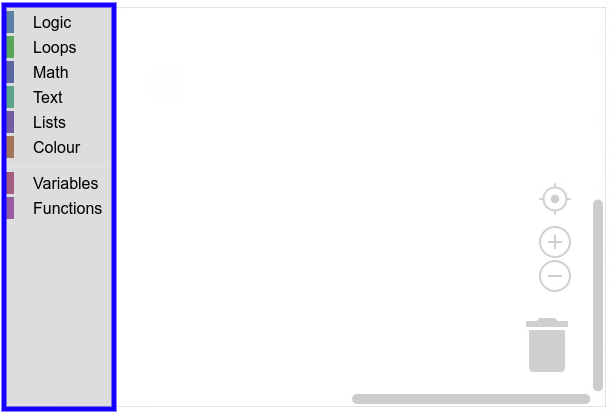
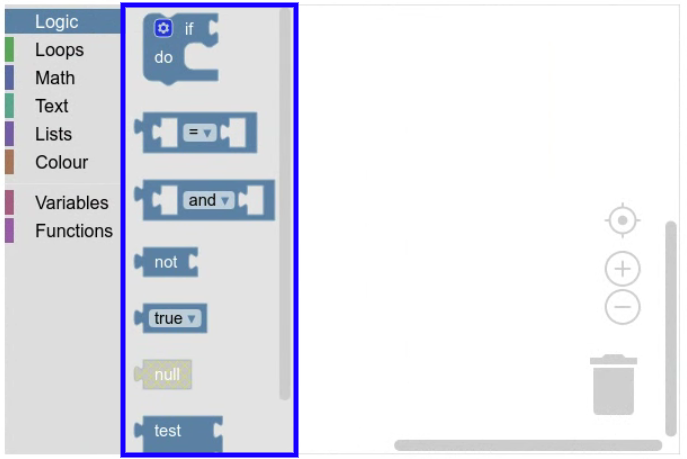
If you click a category item it opens a flyout that displays the blocks in the category.
Trashcan
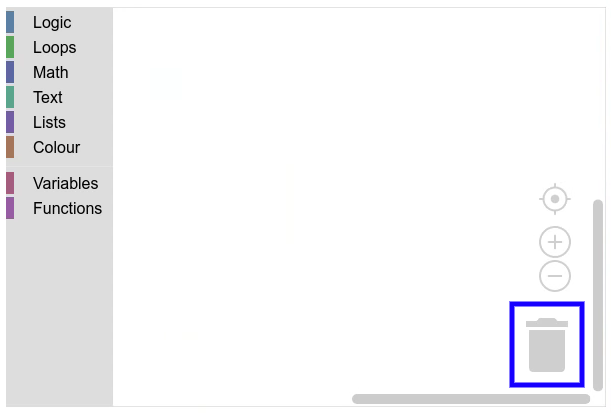
The trashcan lets you delete blocks by dragging and dropping them. You can also click the trashcan to open a flyout containing the blocks you've deleted so you can get them back.
Zoom controls
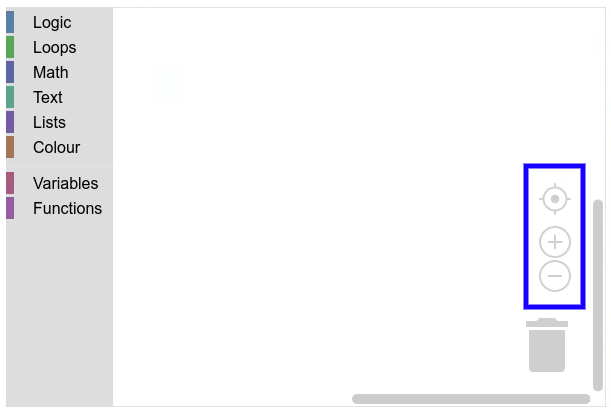
The zoom controls zoom the workspace in and out when you click them.
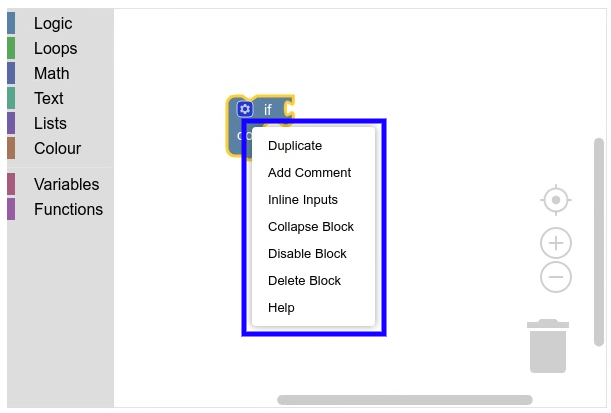
Context menu
The context menu appears when you right-click or long-press on certain elements of the workspace (for example, the workspace background, or blocks). It displays a list of actions you can perform on that element.
Blocks
Blocks are what you use to program. They represent expressions and statements in text-based programming languages.
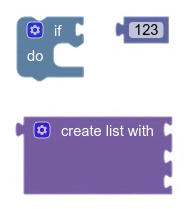
Block stack
A block stack is any collection of connected blocks. They could be connected horizontally or vertically.
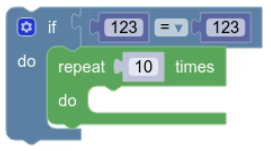
Shadow block
A shadow block is an editable but non-movable block connected to another block. You can drag non-shadow blocks on top of shadow blocks to overwrite them.
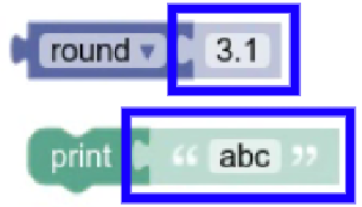
Insertion marker
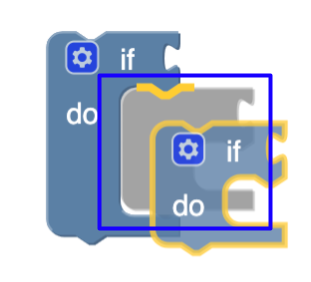
An insertion marker is a preview of where a stack of blocks will be connected if it is dropped. It looks like a grey version of a block.
Block parts
Blocks have several different parts that you can edit and interact with to program.
Fields
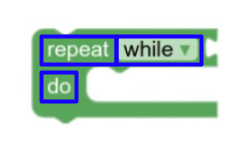
A field is a visual element that lives on a block. It could be editable (like a text input), or only informational (like a label). A field is always contained by an input.
Connections
A connection is a place on a block other blocks can connect to.
| Connection | Image |
|---|---|
| Output |  |
| Input |  |
| Previous |  |
| Next |  |
Inputs
An input is a container for fields and connections. A block is built by rendering its inputs in one or more rows like bricks.
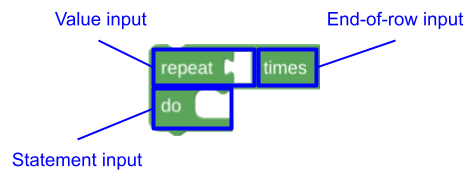
All inputs can contain fields. Only value and statement inputs can contain a connection.
| Input type | Connection type | Notes |
|---|---|---|
| Dummy | None | |
| End-of-row | None | Forces next input to start a new row. |
| Value | Input | |
| Statement | Next |
Icons
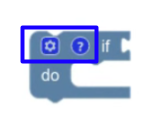
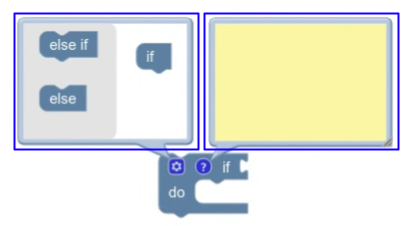
An icon is a visual element that lives on a block. They always live in the top-start corner of the block, and they often create bubbles.